Before you begin
Work with your LivePerson representative to enable Conversation Summaries for your account.
Self-service configuration
1 - In Conversational Cloud, click Manage > Management Console.
2 - Search for "copilot," and select the Copilot: Conversation Summary option from the results.

3 - Click Proceed to configure.
➡️ Once you follow the on-screen instructions and click Proceed to configure, a permission named View automated conversation summary is made visible in Conversational Cloud. This permission is enabled by default for the Agent and Agent Manager profiles.
4 - In the Configuration section, follow the instructions to set up the account for summarization.

You can specify different prompts to use to generate the summary depending on whether the conversation was transferred or closed. You can also specify a value of "None" if you don't want summaries for transfers or closures on a specific skill.
- For the Transfer event, the prompt you specify is used to generate a summary when the conversation is transferred from the skill you specify.
- For the Closure event, the prompt you specify is used to generate a summary when the conversation is closed on the skill you specify.
Out-of-the-box prompts
In the Prompt Library, you will now see two out-of-the-box Summarization prompts from LivePerson:
- A basic paragraph style prompt
- A structured prompt
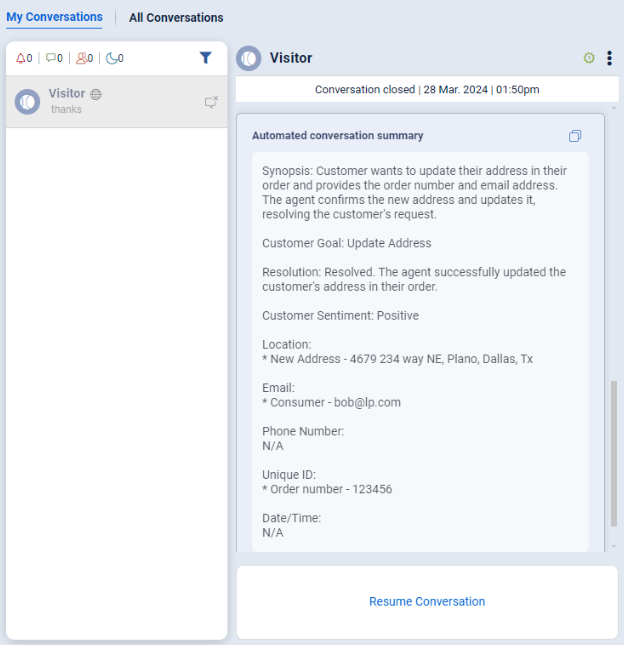
The following is an example of the generated summary using the Structured prompt.
Customize the prompt
You can customize the summarization prompts using the Prompt Library. Click the "eye" icon to open the prompt in the Prompt Library.

Important: There are a few variables available when customizing a summarization prompt:
{text}: This variable is mandatory and should be placed in every summary prompt. Without it, conversation transcripts won't reach OpenAI, leading to inaccurate summaries.{language} (Optional): Use this variable to generate summaries in a specific language. If the variable is not included, the summaries will be in English. {participants} This variable clarifies the summary text by distinguishing between bot interactions and agent interactions.
Here's an example showing how these variables are used in the prompt text:
Accurately summarize the conversation in the "text" below as succinctly as possible using {language}:<br> <br>text:<br>{text}
More on the {language} variable
When the {language} variable is used in the prompt, the language of the summary is determined as follows:
- For the Web channel, the language of the engagement is used, if specified. If it's unspecified, the language specified in a back-end language setting for your account is used.
- For 3rd party channels (WhatsApp, SMS, Apple Messages for Business, etc.), the language specified in the back-end language setting for your account is used.
- For the in-app channel, the Mobile SDK uses the language of the engagement, if specified. Otherwise, it uses the system language of the consumer's device.
Test the prompt
There are two approaches:
- Quick test in the Management Console
- Test with live conversations
Quick test in the Management Console
Update the prompt as needed in the Prompt Library. Then, expand the "Test and Tune" section as shown below:

In the Test and Tune section, select the two prompts you want to test and compare. Enter up to 5 conversation IDs to test summarization. Click on "Run Test." The results section will display the generated summaries for these prompts in a table.

In the results section, click on the transcript icon to view the conversation transcript too.
Test with live conversations
When a new prompt is added or customized follow these steps to test the prompt:
- Create a test skill: Set up a temporary skill specifically for testing purposes.
- Assign updated prompt: Assign the new/updated prompt you want to test to this skill.
- Save changes: Save the configuration in the management console.
- Start a conversation: Initiate a new conversation in the agent workspace associated with the test skill.
- Review summaries: During the conversation transfer or closure, review the generated summaries to see if they align with your expectations based on the updated prompt.
FAQs
If there is more than one prompt active for different skills, which prompt gets used for transfers?
Brands can assign specific skill(s) to each prompt (like Prompt 1 for skill A,B,C and Prompt 2 for skill X,Y,Z ).
- When a conversation stays within skills assigned to a particular prompt, that prompt is always used for summarizing the conversation i.e. transfers between skills A, B or C.
- For transfer that happens between skill groups (i.e., from skill X to skill B), the prompt associated with the originating skill will still be used for the summary, i.e., Prompt 2 will be used when conversation is transferred from skill X to skill B.
- If the originating skill is not configured, we will attempt to use the destination skill. If the destination skill is not available we will attempt to use any skill that previously triggered a summary in the current conversation.
How is the language determined for a summary when the {language} variable is used in the prompt?
For the Web channel, summarization is based on the engagement language if available. If it isn't available, the language specified in the account-level site setting le.general.language is used.
For 3rd party channels (WhatsAppA, SMS, Apple Messages for Business, etc.), the language specified in the account-level site setting le.general.language is used.
For the in-app channel, the Mobile SDK uses the language from the engagement (C4M) if it is configured that way. Otherwise, it uses the device/system language. If the brand does not have any campaign info details, the language is pulled from the consumer device system language. If you want to use a specific language, you must programmatically change the device system language before initializing our SDK.
How soon will the configuration be in effect after I save my changes in the Management Console?
After the configuration is updated and saved, the changes will take effect in 1 minute.