Introduction
At LivePerson we recognize that every brand is unique and employs an individual approach to managing their users.
To ensure that complex organizations have the flexibility to tailor user roles to the distinct way they run their business, the permissions feature within LivePerson provides brands with the opportunity to fully customize each of the four roles:
- Agent
- Agent manager
- Campaign manager
- Admin
Roles and profiles defined
A role defines the scope of the user’s work and can be one of:
- Agent
- Agent Manager
- Campaign Manager
- Administrator
Each role encompasses a unique set of permissions. Some of these permissions are considered "core" and can't be disabled; other permissions you can enable or disable. You can't create or edit roles.
A profile is a set of permissions within a Conversational Cloud role. You can create and edit profiles. For ease and usability, Conversational Cloud defines a default profile per role. You can customize these profiles and create others to suit your organizational structure. For example, for the Agent role, you might create Senior Agent and Junior Agent profiles.
There is flexibility within these user management capabilities, which is especially important to small and medium-sized brands. That is, you can assign multiple profiles to users. For example, you might need to assign both the Agent Manager and Agent profiles to a manager who takes chats with consumers. Similarly, you might need to assign the Campaign Manager and Admin profiles to a campaign manager who also manages users and takes care of account administration.
More control for agent managers
To further empower agent managers, you can grant this role limited user management permissions, including:
- Create /edit users of agent and agent manager roles within their group’s structure
- Create /edit agent groups within the group’s structure
- Create /edit agent and agent manager’s profiles
- Create /edit skills
➡️ Profiles and users can only be configured by admins and agent managers with special permissions.
Create and customize a profile
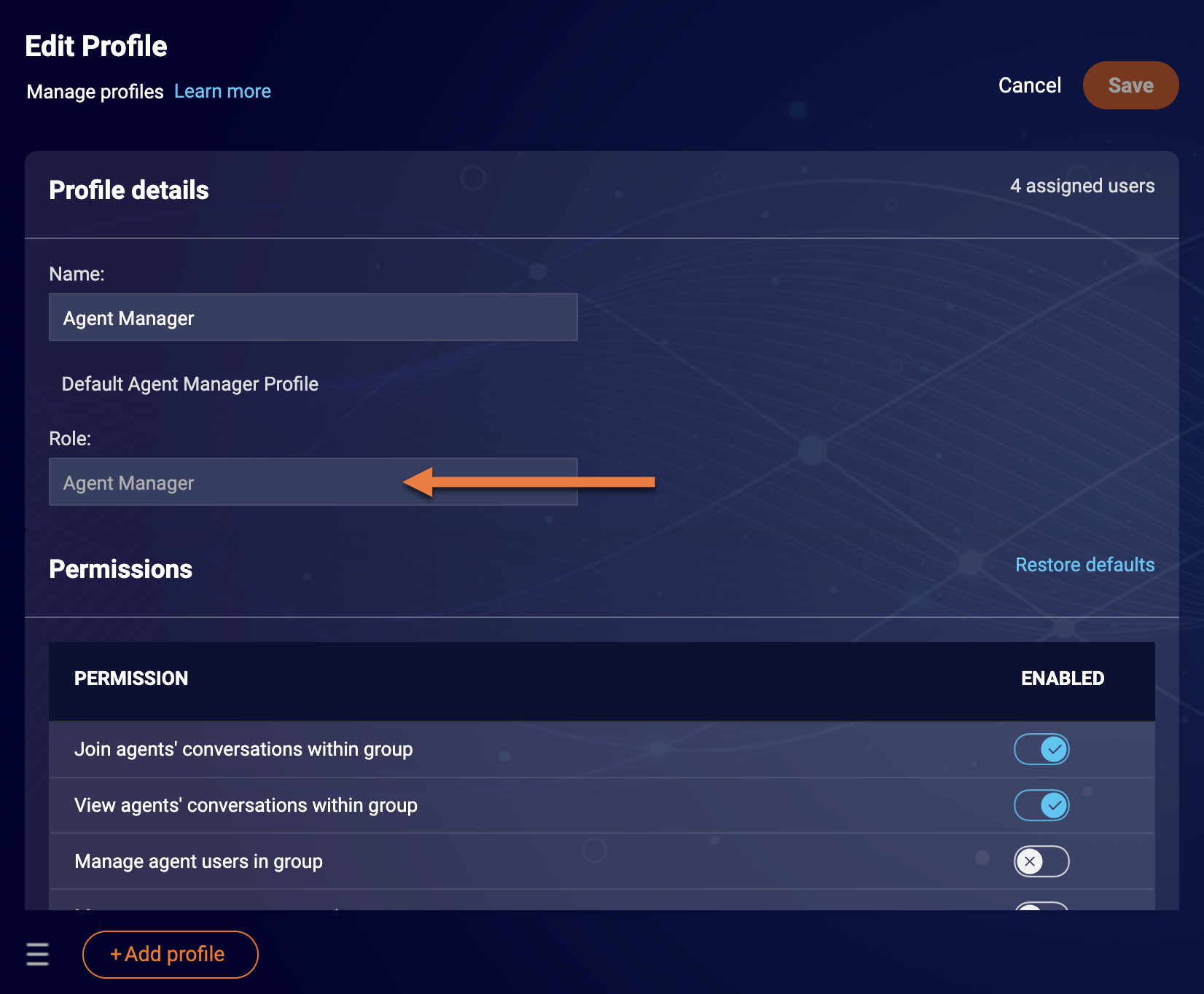
- In the user tab, select add profile. The edit profile screen will appear.
- Select the role the profile will sit within: agent, agent manager, campaign manager, or admin.
- Give the profile a name, e.g. senior agent manager, and add a description (optional).
- The permissions assigned to the role will appear automatically enabled. Switch the toggles off to disable individual permissions.
- To return the profile to the default permissions set, click restore defaults.
- Save the profile.
Create a user and assign a profile
1. On the 'users' list, click 'add user' at the bottom of the page.
2. Type in the user’s details.
- Login name
- Email address
- User’s name
- User’s nickname (this is the name that will be displayed to visitors in a chat)
3. Under assignment, select the profile(s) that apply to the user. Up to four profiles can be selected, but only one from within each role.
Steps 4 and 5 apply to users with an agent role profile only:
4. Set the maximum number of chats that the user can accept at any given moment. Consider your agent’s capabilities, the number of agents available, etc.
5. For visitors to be routed to the appropriate agent when they initiate a chat, assign the user a skill:
➡️
- Select a skill from the menu by clicking the skills field and selecting an existing skill, or
- Create a new skill by typing in the name of the skill in the skills field
6. Set a password. Click 'save'.
Agents who are not assigned to skills can only accept chats originated by engagements that are not assigned to skills.
Role: Agent
The following core permissions are included with the agent role and cannot be disabled. Please note this list is not exhaustive and may vary per customer.
- The ability for an agent to change their name, password, regional settings, and so on
- Ability to accept any chat or conversation request, within the agent’s maximum concurrency limit
- View information about their individual performance
- Ability to submit messaging agent survey
- Ability to send social public messages
- View auto complete
- View smart suggestions
For a list of the permissions that can be configured for this role, see here
https://community.liveperson.com/profileroletable
Role: Agent manager
The following core permissions are included with the agent manager role and cannot be disabled. Please note this list is not exhaustive and may vary per customer.
- The ability for an Agent Manager to change their name, password, regional settings, and so on
- View the status of the chat queue for all Agents in the queue health dashboard
- View detailed information about Agent performance and engagement activity in the Agent Manager BI dashboard
- View skills chats
- View Agent Manager BI Reports
- Takeover conversations
- Transfer to specific agents away status
- View skill level metrics for the Manager Workspace
- View Contact Center Analytics
For a list of the permissions that can be configured for this role, see here:
https://community.liveperson.com/profileroletable
Role: Campaign manager
The following core permissions are included with the campaign manager role and cannot be disabled. Please note this list is not exhaustive and may vary per customer.
- The ability for a Campaign Manager to change their name, password, regional settings, and so on
- View all Campaigns in the Campaign Builder
- View all visitors in the Agent Workspace
- View a snapshot of the performance of all your account’s Campaigns in the Campaigns Dashboard
- View detailed information on the performance of all your account’s Campaigns in the Campaign Manager BI dashboard
For a list of the permissions that can be configured for this role, see here:
https://community.liveperson.com/profileroletable
Role: Admin
The following core permissions are included with the Admin role and cannot be disabled. Please note this list is not exhaustive and may vary per customer.
- Ability to change their name, password, regional settings, and so on
- View all campaigns in the Campaign Builder
- View all visitors in the Agent Workspace
- View a snapshot of the performance of all your account’s campaigns in the campaigns dashboard
- View detailed information on the performance of all your account’s campaigns in the campaign manager BI dashboard
- Ability to configure the authentication server
- Ability to configure monitored domains
- View the web tag page
- View, Customize and share reports in Analytics Builder.
- View and edit the account's login policy
- Configure & edit the account via the Management console
For a list of the permissions that can be configured for this role, see here:
https://community.liveperson.com/profileroletable
Visuals
See screenshots below as examples of permissions for the different roles:
Agent

Admin

Campaign Manager

Agent Manager
