Overview: This article provides a walk through for configuring Salesforce as an identity provider for Tenfold Single Sign-On.
Tenfold SSO Configuration with Salesforce
The transition from Connected Apps to External Client Apps (ECA) in Salesforce is part of a move toward a more modular and secure integration architecture. In the External Client App Manager, the configuration is split between "Settings" (developer-side) and "Policies" (admin-side).
1. Create the External Client App (Replacing "New Connected App")
Instead of going to App Manager > New Connected App, follow these steps:
- Go to Setup and search for External Client App Manager.
- Click New External Client App.
- Basic Information: Provide the name (e.g., Tenfold) and your contact email.
- Plugins: You must enable the SAML Service Provider plugin if not already.
- Note: In the new UI, features are modular. If you only need SSO, you only enable the SAML plugin.
- Click Save.
2. Configure SAML Settings (Replacing "Web App Settings")
Once the app is created, you need to configure the specific SAML handshake details:
- In the External Client App Manager list, find your new app and click the dropdown arrow, then select View Details.
- Look for the SAML Service Provider Settings section (this replaces the SAML section in the old Connected App UI).
- Enter the Tenfold-specific values:
- Entity ID: sso.tenfold.com
- ACS URL: https://dashboard.tenfold.com/corporate-login/callback
- Subject Type: Username
- Name ID Format: urn:oasis:names:tc:SAML:1.1:nameid-format:emailAddress
- Issuer: Select your Salesforce Identity Provider issuer.
- Note: This should be found on the identity provider section in Salesforce
- Save the settings.
3. Assign Access via Policies (Replacing "Manage Profiles")
In the External Client App framework, access is managed through a separate "Policies" file or the UI policy editor:
- In External Client App Manager, locate your app.
- Click the dropdown and select Manage Policies.
- Go to the Permitted Users section.
- Under Profiles or Permission Sets, add the specific groups that need access to Tenfold.
- Note: It is now best practice to use Permission Sets with External Client Apps for more granular control.
4. Custom Attributes & Multi-Tenant (Replacing "Custom Attributes")
If you are using the Multi-tenant configuration mentioned in the LivePerson guide:
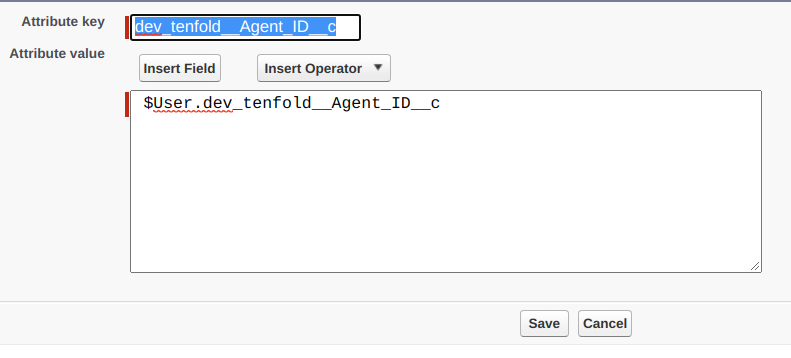
- While still in Manage Policies, look for the Custom Attributes section.
- Click New to add the Tenfold attributes:
- Key: firstName | Value: $User.FirstName
- Key: lastName | Value: $User.LastName
- Key: tenfold_organization__c (if applicable for multi-tenant).
5. Download Metadata
Instead of the "Manage" button on the Connected App:
- In the External Client App Manager, click the dropdown for your app.
- Select Download SAML Metadata.
- Under SAML Login Info in the policies tab
Use this file to complete the setup in the Tenfold Dashboard as outlined in Step 6.
6. Download Metadata
- Configure SSO in Tenfold Dashboard:
- In the Tenfold dashboard, navigate to the Single Sign-On configuration page.
- Set the Domain to the value that users will enter when logging in (e.g.,
acme.org). - Upload the Metadata XML file downloaded in Step 2.
- Click Save.
- Test the Corporate Login via Tenfold:
- On the Tenfold login page, navigate to the Corporate Login tab and enter the configured domain name from Step 7.
- Enter your Salesforce login credentials. After successful login, you will be redirected to the Tenfold dashboard.
You are now ready to authenticate Tenfold users using Salesforce as the Identity Provider.
Multi-tenant configuration
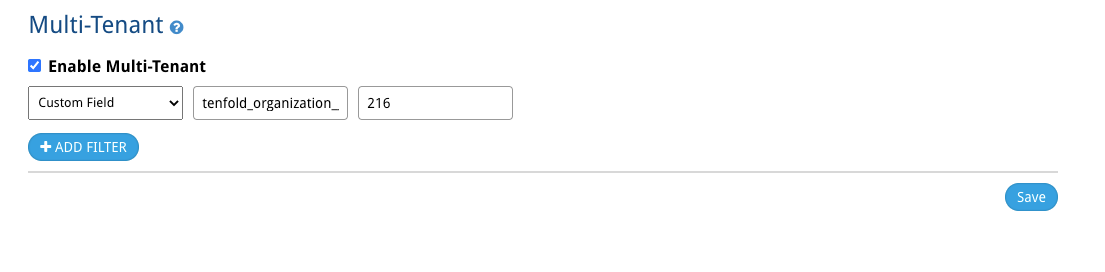
Overview: If your organization leverages multiple, disparate Tenfold environments you will need to enable Multi-tenant within the Single Sign On feature setup to enable connectivity from a single Identity Provider (Salesforce) to the various Tenfold environments. This will allow Tenfold to know which specific environment a user should authenticate into on sign on within Salesforce
- Select the 'Enable Multi-Tenant' setting at the bottom of the Single-Sign On page for each of the Tenfold environments that will be leveraging SSO from a single Identity Provider.
Within the connected application within Salesforce, at the bottom of the setup page, you will note a section to configure 'Custom Attributes' for SAML. Create a new 'Custom Attribute' which can be user to associate users to the proper Tenfold environment.
- This could be a new, custom field such as 'Tenfold Organization,' or an existing field such as Call Center ID. What is important is that the value should be unique and align 1:1 with which Tenfold environment they are using. Each user should have the value entered that aligns with the proper Tenfold environment on their Salesforce user record.

- Select the desirable field from the 'User' object. The field should be a free text, or formula field. Some fields, such as picklist fields, may not be emitted in the SAML payload.